


Microsoft Windows XP is an old operating system that has reached the end of its support from Microsoft. But if you’re still required to run it, then the best way to do so is to execute it on a virtual machine.
I completely switched to ‘Linux‘ about a year ago and personally, and starting very recently, I wanted to run Windows XP because I have to use a couple of applications that’re only designed to run in Windows, and for a couple of months I’ve been using my licensed Windows 8.1 in a virtual machine on Ubuntu 15.10 just for the sake of running those applications. But my laptop only has 4 GB of RAM and when using Windows 8.1 virtual machine (I use VirtualBox and have allocated 1.4 GB of RAM for Windows 8.1) alongside my web browser with 8-12 tabs opened in Ubuntu 15.10, it really slows things down due to the heavy memory usage.
So recently I switched to a Windows XP virtual machine to see if I can counteract this somehow. I’ve been using it for a few weeks now, and with just a 700 MB RAM, XP runs great!. Sure it’s an outdated and a bit ugly looking operating system, but I just use it for the sake of running my applications. I can’t really complain. However, being old, Windows XP also has an outdated hardware driver support. Therefore, unlike with Windows 8.1, you won’t be able to connect to the Internet without first making a couple of changes in VirtualBox. So in this article I’ll share with you what I did to enable internet access to Window XP virtual machine under VirtualBox, hoping that someone may find it useful. And even though I used Ubuntu 15.10 as the host, these instructions should work despite what operating system you’ll be utilizing to act as the host.
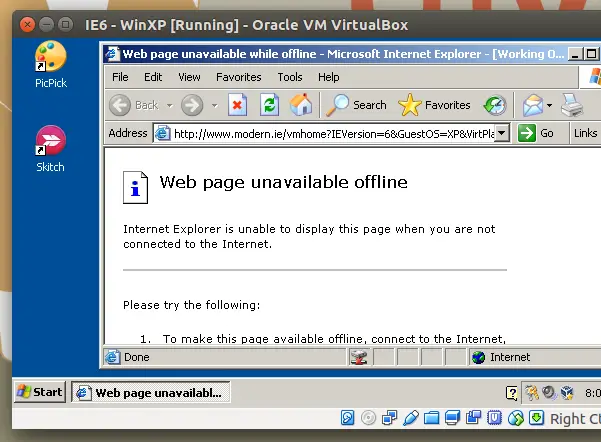
What we’ll be doing is simple. First we have to change the network setting of VirtualBox for the Window XP VM. And then we have to download the network adapter driver through the Host operating system, share it with the VM, and install it on the Windows XP VM. Afterwards, Windows XP will be able connect to the internet. It’s pretty simple. So let’s do it.
Step 1: First of all, if you’re already running the Window XP virtual machine, then turn it OFF. Then from the VirtualBox VM manager window, select the Windows XP VM and click on the Settings icon.
Step 2: Then click on the Network tab, and make sure you’ve selected ‘NAT‘ under Attached to: option. Then click on Advanced, and under ‘Adapter Type‘, make sure you’ve selected Intel Pro/1000 MT Desktop(...). Below that, the ‘Cable Connected‘ option should also be checked.

Step 3: If you’ve already setup a shared folder for the Windows XP VM you can simply click on the ‘OK’ button and move on to Step 4. Otherwise, don’t click on the ‘OK’ button just yet, and click on the Shared Folders icon instead.
From the window to your right, click on the small folder icon with the green cross to add a shared folder.

You can share any folder with the virtual machine. I’ve shared my ‘Home’ folder (which is the equivalent of ‘My Documents’ in Windows) with the VM and since I should be able to write to the shared folder from the VM, I make sure to uncheck ‘Read-only‘ option and check the ‘Auto-mount‘ option so that the folder gets mounted every time the virtual machine boots up. You can also changed the name of the mounted folder as well (by default VirtualBox uses the shared folder’s name).
Step 4: Now download the Intel Pro/1000 MT Ethernet adapter driver from this page (there are two drivers. One for the 32-bit version of Windows XP, & the other is for the 64-bit version) using the Host operating system. Once the download finishes, copy it over to the shared folder.
Step 5: Now turn ON the Windows XP virtual machine. Once it finishes booting, open My Computer and you should see the shared folder mounted there. Now locate the downloaded Intel Ethernet adapter installer and install it (when unsure, 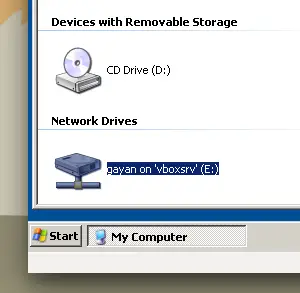 just go with the default selection of the installer).
Now open up the web browser and you should be able to access internet. If not, reboot the virtual machine. That’s it. Good luck.
Update (2019-04-11): It’s been a while since I wrote this tutorial but these steps should still work. However, even after following all these steps you still can’t connect to the internet, then try downloading Firefox for Windows XP from the host computer and then place it in the shared folder and install it from there. After that you should be able to connect to the internet as long as you are using that web browser. A especial thank you should go to Tim in the comment section for pointing this out!
P.S: (if you’ll be browsing internet often through the Windows XP VM, then replace the old IE with Firefox or Google Chrome).

102 Comments
Same issue follow each and every steps also selected auto mount but no shared folder appeared after rebooting XP VM..
kindly help ?
Wow. Nothing else worked, but this! Thank you for putting these excellent instructions together! (Still on XP for one computer for legacy software!)
Thanks for this help, but I got stuck. The shared folder is connected, fine. But after trying to install the downloaded network driver an unexpected error occurred: “The procedure entry point EncodePointer could not be located in the dynamic link library KERNEL32.dll” I tried the 32 bit and the 64 bit version (64 bit system is installed.
No idea how to fix this …
Any ideas? Thanks a lot for help.
Download Firefox for Windows XP from the host machine, save it in the shared folder and install it in the Windows XP VM. After that, as long as you stick with Firefox in Windows XP, you should be able to access Internet.
I’m running VirtualBox on Win10 and trying to access the Internet via an XP VM and failing. I’ve installed the driver via the download and creating the share as you described it. I’ve also ensured the proper NIC is selected, per your instructions. (Great instructions – thanks.) But, still no Internet.
I have bridged my VM NIC with my host wi-fi NIC per some instructions on another site.
Are there specific IP settings I need to change on the XP VM NIC?
I could not get the driver to work but I found an easier solution, just use the bridged adapter
Thanks for maintaining this discussion.
Your tips about downloading the driver for the Intel Pro/1000 Adapter and downloading the installer for Firefox v 43 resolved the problem I was having.
Now I can use my VirtualBox installation of WinXP to get software updates for my old Win XP software programs. (Running on my iMac OSX Yosemite).
Best Wishes
You’re welcome.
Hi, also a fix. Even with all of that information, Internet explorer can still work. At the moment, only websites with http can work…
websites such as google won’t (bing will).
To fix this,
open internet explorer on the VM.
Go into tools, and then internet options.
Press advanced and scroll down and tick ‘Use http 1.1 through proxy connections’,
then scroll until you see ‘use TLS 1.0’… make sure this is ticked.
Using your method, and doing this too made internet explorer work for me 🙂
Thank you for the clever suggestion. Still, however, given its outdated updates, I highly recommend switching to a ‘modern’ web browser that keeps you updated for security reasons.
This worked for me, thanks very much!
Thank you so much, Gayan. It’s even relevant now (July 2019). I’m running Windows XP Home (32bit) via host: Ubuntu Budgie Host 18.04. The following link worked for downloading Firefox browser (matching 32 bit version) for easy installation: https://msfn.org/board/topic/178137-mozilla-firefox-5291-esr-works-on-windows-xp/ (Could not find the correct version on Mozilla’s site). Now I can update the Service packs for XP as well.
You’re welcome Alan.
Umm…
Up to step 4….
If I can access my network and it’s folder I wouldn’t have problems accessing the internet……DUH!
Now I can’t access my home network and the internet at all.
The ORACLE – XP pro sp2 VM is encapsulated and isolated all to itself ?
The download link for the Intel Pro/1000 MT Ethernet adapter [https://downloadcenter.intel.com/download/18717/Network-Adapter-Drivers-for-Windows-XP-Final-Release] seems to be broken as of 2019-09-12 (the Intel site says “Page Not Found”), but this one [https://support.lenovo.com/de/en/downloads/ds036624] seems to be working.
Thnks for the link Christopher. Preferable to downloading from a dodgy site:)
Awesome write up here. I’ve been fighting connection issues for days between my XP VM and Windows 10. All the other links and help forums make it sound so easy. The network driver + Firefox recommendation worked perfectly.
My only remaining problem is that I can’t register my XP copy, seemingly because I can’t get Internet Explorer to connect to the internet (I think the register tool depends on IE). I downloaded version8 but it still won’t function even though Firefox works perfectly. Anyone else figure out how to get IE working?
Working… thank you so much ????????????????
I created a shared folder and copied the Pro/1000 driver and the firefox.exe file to it as well but the folder does not show up in the VM > My Computer.
download link for drivers is dead
I would like to add that I found a driver somewhere else, which is “PRO2KXP_v14_0.exe” This is a generic universal driver for all systems that can use this model of network adapter.
And, that for windows XP, you are best off downloading and installing Mozilla Firefox version 43.0 and updating/upgrading thru mozilla itself. (It should automatically upgrade you to the latest compatible version?)
I can track down links and provide copies of my personal files. The best way to obtain them from me is honestly probably XBOX1 – “ODflatline”. Just send me a message.
I would like to add that I found a driver somewhere else, which is “PRO2KXP_v14_0.exe” This is a generic universal driver for all systems that can use this model of network adapter.
And, that for windows XP, you are best off downloading and installing Mozilla Firefox version 43.0 and updating/upgrading thru mozilla itself. (It should automatically upgrade you to the latest compatible version?)
I can track down links and provide copies of my personal files. The best way to obtain them from me is honestly probably
EDIT: to further simplify the process, as well as adding functionality, I would beseech of you to find the virtual machines devices menu (on the VM application frame) and select “insert guest CD…” And on the same menu, enable drag-and-drop, but set it to “Host-to-Guest ONLY” afterwards.
Drag-and-drop is much more streamlined and secure when set to function inin this manner, and maintains all the capability of a “shared-folder”
—> I am adding a Google Drive link for my windows utilities folder (which is practically exclusive to windows XP systems.
https://drive.google.com/drive/folders/15JAt-9ckkzioUnppJzyw0YskWiBv98x9?usp=sharing
it works thanks
hi i was following your instructions about downloading the Ethernet adapter driver and sharing the carpet as you described, but for some reason when i try to find it in WinXp, it doesnt show… any tips? i would really appreciate it
I cannot find the driver. Help
Using Virtual Box 7 + MicroXP v1.0 SP3 Dark Reverser 2012 + Otter Browser Portable 1.0.03.
Internet was not working for me using Network config: NAT + Intel Pro/1000 MT.
I did not download and install any drivers, instead I tried:
Network config to NAT + PCnet-FAST III and Internet connexion is working now.
Thanks everyone for your comments.