


Linux allows users to define and use variables/functions to manipulate data. But it only works in the defined shell. Furthermore, a terminal comprises two shells parent and child. If a variable is defined in the parent shell, it won’t be accessible in its child shell. To manage such cases, Linux has introduced the environment variables/functions. It defines environment variables in Linux using the “export” command.
Contents
The “export” is the built-in command-line utility that exports environment variables/functions and allows its usage across the whole environment.
Today, this post is all about the “export” commands in Linux.
Why do We Need export Command?
Let’s understand the need for export command practical. In the below scenario, a terminal is opened and declared as a parent shell and we will create its child process shortly. Furthermore, a variable “Mateen=”hecticgeek” is defined and an echo statement is printing it in the shell:
echo "Parent Shell"
Mateen="hecticgeek"
echo $Mateen

Now, create a child shell by executing the “bash” command and try to access the defined variable “$Mateen”:
bash
echo "Child Process"
echo $Mateen

It can be noticed that the variable is empty. In these scenarios, users need the “export” command.
How Does export Command Work?
As already said, the “export” command is for defining and exporting the environment variables or functions. The working of this command uses the following syntax:
Syntax
export [-options] [names[=value]] The syntax is defined as:
- Use the desired “options” with the export command.
- Specify the variable and give its “value”.
Options Explanation
| Options | Description |
| -f | Utilized for defining the function. |
| -n | Removes the defined variable/function from the environment variable list |
| -p | Displays a list of all environment variables. |
To get a detailed summary of the “export” command and “options” to be used, execute the “help” command:
export --help
That is all from this basic discussion. Let’s explore this export command.
How to Use export Command in Linux?
As explained above, the export command has multiple options to be used. Let’s see the usage of the “export” command with its different flags.
Example 1: export Command with “-f” Flag
As already defined, the “-f” is considered for defining the function in the shell. In the below case, a function “fun()” prints a “Hello” message. While the export command is exporting it to the environment using the “-f” flag:
fun() { echo "Hello"; }
export -f fun
fun

The function “fun()” is defined and exported and prints a “Hello” message.
Example 2: export Command with “-n” Option
The “-n” option with the “export” command removes the defined environment variables from the list. For instance, we have the variable “Mateen=hecticgeek” in the environment variable list:

To remove the “Mateen” variable from the list, specify the “-n” option with the “export” command:
export -n Mateen
printenv Mateen
The above commands show that the variable “Mateen” is removed which is verified by the command “printenv”.
Example 2: export Command with “-p” Option
To list all imported environment variables for the current shell, use the “-p” option with the export command:
export -p
All imported environment variables are listed.
Example 3: Change Terminal Appearance
Interestingly, the user can export ANSI colors in the terminal to change its appearance. As proof, an ANSI color code is being exported to the “PS1” variable (specifies the format for the terminal command prompt):
export PS1='\[\e[1;36m\][\u@\h \W]\$\[\e[0m\] '
The appearance of the terminal has changed. For different types of appearances, change the number inside the “\[\e[1;36m\][\u@\h \W]\$\[\e[0m\]”.
How to Set Environment Variables/Functions Using the export Command Temporarily?
To set environment variables/functions temporarily, perform the given instructions. It is only accessible within the terminal session:
Step 1: Create Environment Variable and Function
Create the environment variable/function and specify its value. Then, define the function and export using the export command with the “-f” flag:
export Mateen=hecticgeek
function func() { echo "exported function"; }
export -f func
Step 2: Use Environment Variable/Functions
Now, use above defined variable and functions ($Mateen and func) within the terminal even in the child shell as shown:
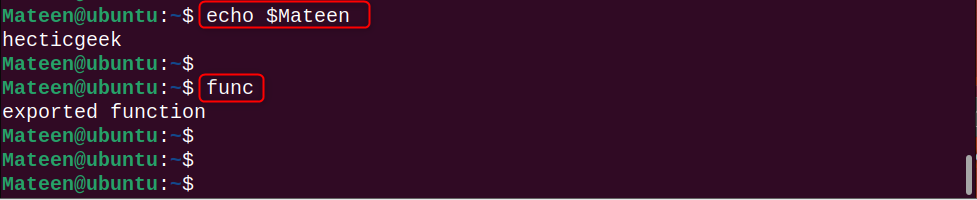
It can be seen that variable “$Mateen” prints “hecticgeek” and function “func” prints “exported function” as defined.
Check the Defined Environment Variable and Functions in a New Shell
Since the created variables/functions are set temporarily and won’t be accessible in a new shell terminal. This scenario can seen here as we opened a new terminal using the defined variable/functions:
echo $Mateen
func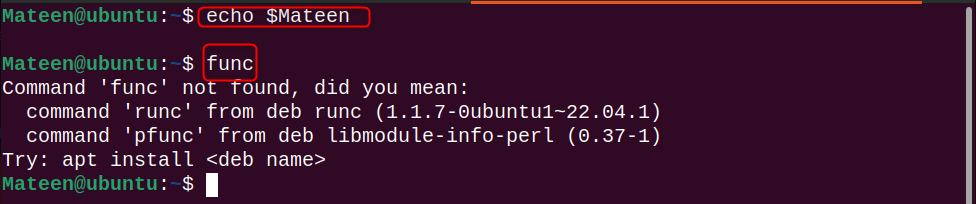
The defined variable and function ($Mateen and func) are not recognized by the new terminal.
How to Set Environment Variables Using export Command Permanently?
Permanent environment variables/functions are defined to use throughout any terminal session. For this objective, open the “.bashrc” file and define environment variables/functions. It is the configuration file for the bash shell and reloads automatically when a new terminal is opened.
The following are the practical steps to set environment variables/functions permanently:
Step 1: Open .bashrc File
Open .bashrc in the nano editor with the following command:
nano .bashrcStep 2: Define Environment Variable/Functions
Define environment variables/functions in the file. For instance, we’ve defined the “Mateen” variable and pf() function with the “-f” flag:
export Mateen="Permanent Environment Variable"
pf() { echo "Hey! I'm a Permanent Function"; }
export -f pf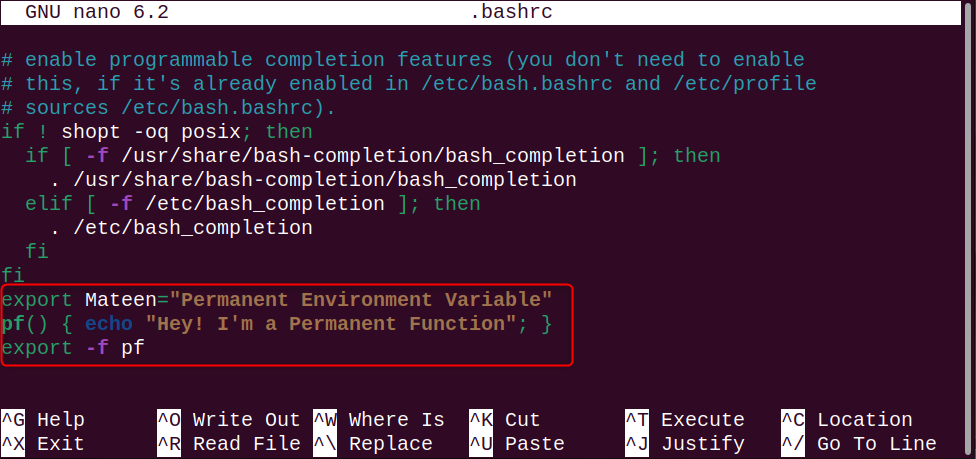
Save the “.bashrc” file by pressing Ctrl+O and exit from the editor using Ctrl+X.
Step 3: Execute .bashrc File
To see the results of the updated “.bashrc” file in the current shell, execute it with the source command:
source .bashrc
The “.bashrc” file is executed.
Step 4: Check Results
Now, use the defined environment variable/function ($Mateen and pf) in any shell:
echo $Mateen
pf
The “$Mateen” variable and the function “pf” have printed the defined echo statements.
But wait, let’s try to use the environment variable on another user terminal:
echo $Mateen
pf

The defined environment variables/functions are not accessed because these are set locally for the user being used
How to Set Global Environment Variables and Functions with export Command For All Users?
The “/etc/profile” file in Linux holds every user’s data for setting environment variables/functions. So, it defines environment variables/functions permanently for all users.
To follow its procedure, check out the below-given steps.
Step 1: Open /etc/profile File
Open the “/etc/profile” file with the nano editor and for this purpose, run this command:
nano /etc/profileStep 2: Define Environment Variable and Functions
Let’s define the environment variable/function in this file. For instance, the variable “Mateen” and the function pf() are defined here:
export Henry="hecticgeek"
export -f pf() { echo "Hey! I'm a Permanent Function For all Users"; }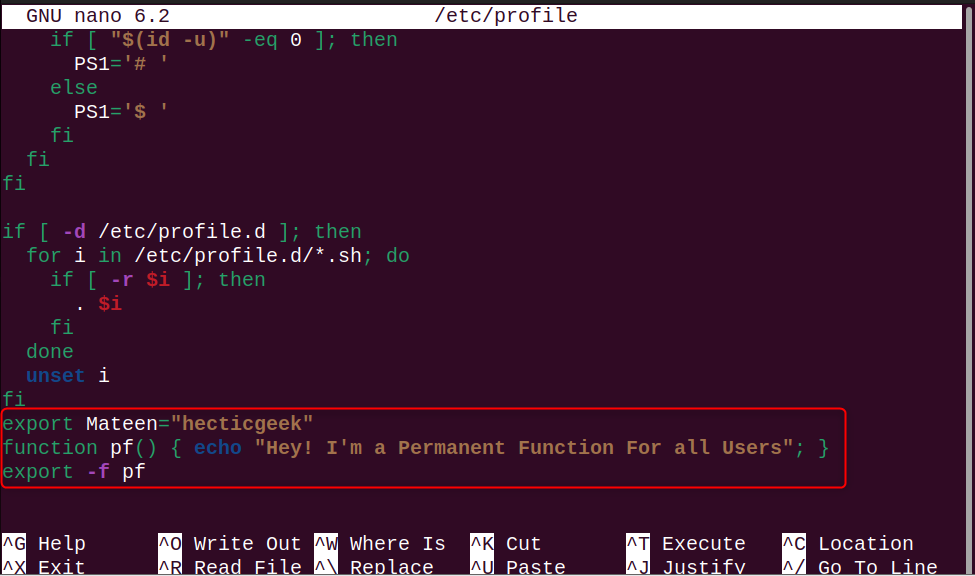
Once defined, save the file by pressing “Ctrl+O” and return to the terminal using “Ctrl+X”.
Step 3: Execute “/etc/profile”
The source is the command that executes the files immediately to see the updated results. So, to execute the /etc/profile file, the command will be:
source /etc/profile
Step 3: Use Environment Variables and Functions
Now, use the defined environment variables and functions ($Mateen /func) for all users:
pf
echo $Mateen
The defined variable/function is working in the current user.
Verification
Let’s verify the access of defined environment variables/functions in other users:
pf
echo $Mateen
It can be observed that the variable “$Mateen” and function “pf” are accessible to the “hecticgeek” user.
Sum Up
The export command in Linux is considered for defining the environment variables/functions. Moreover, it has different options to be used such as “-p” (displays list of environment variables), “-n” (removes environment variables), and “-f” (defines functions). You can set environment variables temporarily, permanently for specific users, and globally for all users. This article has demonstrated the export command and its usage.
