


If you’re a system administrator of a GNU/Linux based computer network (my condolences ;-)), then having the ability to calculate the IP subnets and to get other IP addresses related details is a must. And in those cases you can try “sipcalc”.
The thing about it Sipcalc is that, it is a command-line based utility, but once you get familiar with it, it is extremely easy to use.
You can enter either an IP address or if you know the network interface “id” (more below), then even if you don’t know your current IP address, once given the network interface it’ll display the assigned IP address and various other details of it.

Main features …
*. Supports both IP v4 and v6.
*. Supports gathering information from multiple network interface.
*. Shows you details such as (some are only shown when you use the proper command-line argument):
Host address, Host address in decimal format and Hex, network mask, network mask in bits and Hex formats, broadcasting address, address range, usable range (after excluding the reserved IP addresses for the system), Cisco wildcard address (some routers may not have it), IP version (whether you have a v4 or v6 address) and more.
*. Cisco wildcard analyzer.
*. Displays the all the possible IP addresses for the given range.

*. Supports domain name resolving which comes in handy if you don’t know the IP address (should be used with the ‘-d’ attribute).
If interested you can install “sipcalc” in Ubuntu 12.04 Precise Pangolin, 11.10 Oneiric Ocelot, 11.04 Natty Narwhal, 10.10 and 10.04 by using the below command in your Terminal window.
sudo apt-get install sipcalc
Few examples …
Let’s say that I already know my IP (192.168.1.2 for example) and want to get additional information, then I’d use the below command.
sipcalc 192.168.1.2
This only shows a basic info window (as shown in the first sceernshot). But if I wanted to gather a lot other details then use it with the ‘-a’ argument.
sipcalc -a 192.168.1.2
How to use the network interfaces?
In GNU/Linux each network interface is given a specific name. “wlan” is assigned for the wireless network devices (Wi-Fi for instance). “eth” is assigned for Ethernet interface etc.
If you have more than one device in the same interface (say you have two Wi-Fi cards) then they should be numbered as ‘wlan0’, ‘wlan1 etc.
So for instance, if you have set up a WiFi based Internet connection (I’m using a prolink router) then your default network interface “id” is “wlan0”. So to get the current IP address assigned for my Laptop by the router, I’ll use something like the below one.
sipcalc -I wlan0
This should give an output similar as shown in the below screenshot.
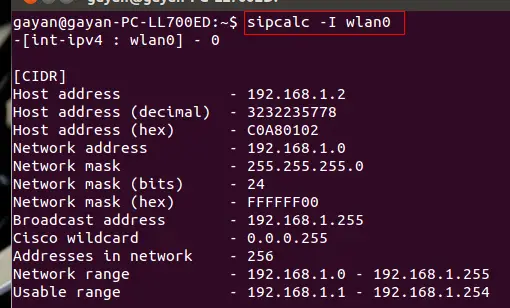
The “-I” is for defining the network interface. So if you have an Ethernet based network then use something like below.
sipcalc -I eth0
Calculating subnets of multiple IP addresses …
Let’s do a bit of an “advanced” calculation. Say that I wanted to get the subnet masks of two IP addresses, including an IP prefix of 31 (192.168.1.2/31 and 192.168.50 for instance), then I’ll use the below command.
sipcalc 192.168.1.2/31 192.168.1.50
Which should give an output similar to below one.

For using domain names rather than IP addresses, please use the below command instead.
sipcalc -d www.yourdomainname.com
You can get all these details by reading its well written manual (and this official sipcalc home page too) by using the below command.
man sipcalc
That’s it.
