Close Menu
    X (Twitter)
    Hectic GeekHectic Geek
    • Apps
      • Apps for Mac
      • Apps for PCs
      • Best Apps
    • Concepts
      • Comparison
      • For Geeks
      • IT Careers
    • Gadgets
      • Accessories
      • Best Work Laptops
      • Budget Laptops
    • GNU/Linux
      • Ubuntu
    • How To
      • Virtualization
      • Windows
      • Windows How-To
    Hectic GeekHectic Geek
    Home ยป iotop: Disk I/O Monitor for Ubuntu Linux
    Ubuntu

    iotop: Disk I/O Monitor for Ubuntu Linux

    GayanBy GayanMarch 29, 2012Updated:October 1, 2012No Comments3 Mins Read
    Twitter Reddit Telegram WhatsApp Email
    Share
    Twitter Reddit Telegram WhatsApp Email

    “iotop” is a small but a powerful disk I/O (input/output) monitor that can be used in Ubuntu Linux. It’s an extremely useful tool if you want to know what programs are using your disk’s read/write bandwidth at an any given moment.

    Or, if you have one of those never notebooks that doesn’t have a HDD LED indicator (such as the Acer Aspire One 722 for instance), then this utility will too come in handy.

    It’s written in Python and as you can see from the below screenshot, it shows the processes that use the most of your disk I/O at top, so you could easily locate the ones that aggressively use disk I/O.

    Man features …

    *. At the top, it displays the sum of all Disk Read and Write.
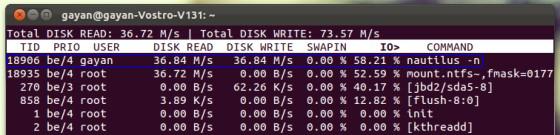
    I’ve highlighted a HDD I/O activity of Nautilus (file manager) just for “show” ๐Ÿ˜‰ …

    *. T displays the individual program name and few other components of it such as the thread ID (TID), disk read and write speeds, percentage value for the current I/O of the thread, program name etc.

    *. Also shows the disk read-write usage of a program rather than speeds (disabled by default, more at the end).

    Well, that’s pretty much it!.

    If interested, you can install “iotop” in Ubuntu 12.04 Precise Pangolin, 11.10 Oneiric Ocelot, 11.04 Natty Narwhal, 10.10 and 10.04 by using the below command in your Terminal window.

    sudo apt-get install iotop

    After that, whenever you want to launch it, put the below command in your Terminal window.

    iotop

    Few usage tips …

    By default it shows all the processes that are assigned for disk I/O. But if you want, you can also make “iotop” to only show the active ones as well. For that, once opened, press the “o” key and it should switch to that mode automatically.

    If you prefer it to start in that mode by default, then use the below command.

    iotop -o

    The default update interval is “1” second. But you can easily change that. For that, please use the below command (make sure to replace “.5” with your preferred value).

    iotop -d .5

    If you want “iotop” to only monitor processes of a specific user, then you can use it in the below format (again, make sure to replace “gayan” with your preferred user’s name).

    iotop -u gayan

    Retrieving the dis Read/Write data …

    Rather than getting the disk read/write speeds, if you wanted to get the amount of data being read or written to disks by a particular program (as shown below), then you can use the below command or you can press the “a” key once its loaded and you can use it to change between those two modes interactively.

    iotop -a

    It has few other tweaks as well. For that please refer to its manual by using the below command.

    man iotop

    Well, that’s it. Enjoy!.

    Share. Twitter Reddit Telegram WhatsApp Email
    Gayan

    An RHCE, 'Linux' user with 14+ years of experience. Extreme lover of Linux and FOSS. He is passionate to test every Linux distribution & compare with the previous release to write in-depth articles to help the FOSS community.

    Related Posts

    How to Check Linux CPU Usage?

    February 5, 2024

    Linux export Command: A Comprehensive Tutorial

    February 3, 2024

    Debian vs Ubuntu Server: A Brief Comparison for Beginners

    July 2, 2023

    CPU Based Simple System Stability and Benchmark Tester for Ubuntu Linux – systester

    June 16, 2023

    Typespeed: Typing Speed Testing Game for Ubuntu Linux

    March 12, 2023

    Debian vs Ubuntu in 2023- Which Linux OS is Right for You?

    January 6, 2023
    Leave A Reply Cancel Reply

    This site uses Akismet to reduce spam. Learn how your comment data is processed.

    Latest Posts

    Transforming Geek Culture with Advanced Software Development

    April 8, 2024

    The Role of Technology in Enhancing Digital Signage Solutions

    February 21, 2024

    How to Check Linux CPU Usage?

    February 5, 2024

    Linux export Command: A Comprehensive Tutorial

    February 3, 2024

    [Fixed] HDMI No Signal to TV or Monitor on Windows 10/11

    November 7, 2023

    AlmaLinux vs Ubuntu – How to Select the Best One?

    October 22, 2023

    Subscribe to Updates

    Get the latest news and updates from Hectic Geek. We won't overload you or sell your data!

    Contact
    • About Us
    • Contact Us
    • Privacy Policy
    • Write for Us
    X (Twitter)
    © 2026 Hectic Geek.

    Type above and press Enter to search. Press Esc to cancel.