


In terms of software, basically any operating system can be “divided” into two main categories. First type of software are the ones that communicate directly with your computer’s hardware (such as VGA card, CPU, RAM, HDD, BIOS etc). This includes your OS Kernel, hardware drivers (GPU drivers, audio drivers etc) and so on.
They are usually called, “System Software” and the hardware devices communicate with these “system software” using software of their own which are known as “Firmware” (usually embedded into their chips such as the “BIOS” of your Motherboard for instance) .
Then there’s this other kind of software, the ones that deal with the users, directly. A multimedia player, text editor, word processor, web browser … are some examples to mention. They’re known as “Application Software”. Although users don’t really have to know about the above mentioned “system software”, since “application software” deal with them, because that’s their purpose (they run on top of “system software”).
For instance, let’s take something like a video player (Totem for example). Whenever you hit the “play” button, this software then passes it to the “system software” and then in the final step, system software pass it to the hardware “firmware”, because now it is their job to give you the video/audio output etc.
So usually, the most important ones, the “system software” are “hidden” from the users (this is just a simple example to give anyone a simple idea about how this works, the actual process is a lot complicated).

Anyway, since “system software” are the ones that really communicate with the actual hardware of your computer, to have a stable & efficient computing experience, the “system software” must have a good compatibility with the hardware (or their “firmware” in other words).
If not, the computer might not be able to run properly or even if it does, it might fail to give you the optimum performance. So to overcome this, there are standards, set to minimize these issues between operating systems and computer hardware. But sometimes it can happen that a particular computer that is designed to run “perfectly” well with a popular OS platform such as MS Windows, might fail to achieve the same level of performance under other OS platforms such as Ubuntu or GNU/Linux.
Depending on your computer this might be even crucial. For example, if you have some sort of a mobile device (tablet, Laptop, Notebook etc) then you might notice that under MS Windows your PC gets a reasonably longer batter life yet in a GNU/Linux OS (such as Ubuntu), the battery life might a bit short.
This happened to me with my Dell Vostro V131, as it came pre-installed Windows 7 and under Ubuntu the battery life is slightly shorter and the CPU fan usually runs a bit louder (faster) where in Windows, under most lightweight tasks (such as web browsing), it’s virtually silent. There could be other reasons for that, but I suspect that the fan speed has a lot to do with it. Anyhow …
Under such circumstances, there’s very little that we can do as users because it’s either the core OS developer’s or the hardware manufacturer’s job to fix those issues (via OS updates, firmware updates etc). However, depending on the occasion, there could be few things that we can do such as if we could somehow gather details about our hardware/firmware and their issues with the operating system (Ubuntu as for this example) and send them to the developers might help them while fixing them.
In that case, “fwts” (stands for: “Firmware Test Suite”) is a command-line based, user friendly and a powerful firmware testing and debugging tool developed by Intel and Canonical. Remember, this is not just a “report” creation tool as it has the ability to pinpoint the issues of your hardware and can even give you hints for fixing them (by yourself!).

Few main features …
*. It has tons of options and tests. I won’t be talking about them all, but will only point out major ones (have mercy! :D).
*. Comes with a lot of built in tests (such as ACPI, CPU, Batter, Display, Sleep/Suspend etc) and I counted around 539, that’s without using the “-a” attribute which executes all the tests. Although there are a lot, yet they won’t take much long (2-3 minutes at max). And the gathered data (failed, successful tests etc) is save in a “log” file in your Home folder.
*. You can run tests with or without user interactions.
*. User interaction based tests has few additional tests such as plugging & unplugging the AC adapter to test the battery draining/charging, open/close the display lid (if you have a notebook) and few built in sleep tests with different power states (S3, S4 … “wakeup” seconds can be changed manually).

*. Save hardware “firmware” data into a log file.
*. Dump CMOS, ACPI tables etc type data into the log (optional).
*. Shows the completed tests in percentage, so you can get an idea how much tests are left etc … are some of features to mention.

You can install fwts in Ubuntu 12.04 Precise Pangolin, 11.10 Oneiric Ocelot, 11.04 Natty Narwhal, 10.10 and 10.04 using the below command in your Terminal window.
sudo apt-get install fwts
However, since it’s in active development, if you want the latest features such as up-to date hardware tests etc then you can use either its “daily builds” (could be a bit unstable) OR “stable builds” PPAs.
For getting daily builds, please use the below commands instead of the above one.
sudo add-apt-repository ppa:firmware-testing-team/ppa-fwts-devel
sudo apt-get update
sudo apt-get install fwts
For getting the stable daily builds (recommended for most users) please use the below commands.
sudo add-apt-repository ppa:firmware-testing-team/ppa-fwts-stable
sudo apt-get update
sudo apt-get install fwts
Once installed, you can run it by typing “fwts” in your Terminal window. However, to get the best out of it (to run all the tests) you’ll have to run it with administrative privileges.
So for instance, if I wanted to run all the available tests with administrative privileges, I’ll use something like the below command.
sudo fwts -a
OR
The below command should also run a lot of firmware related tests as well (default option).
sudo fwts
If you want to run few additional tests that require user interaction (such as closing display lid, etc as mentioned above), then you can do so by using the below command.
sudo fwts -i
For running suspend (sleep-wakeup) tests, use the below command.
sudo fwts -P
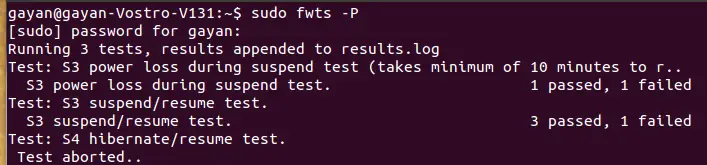
After running it for once, go to your “Home” folder and look for a file called “log” (before running it again, make sure to backup it first, otherwise it’ll be overwritten!). Double click on it in Nautilus and Gedit should open it. Go ahead and read it as it contains all the issues and tips it found.
It can be a bit painful to read, but since it has separate sections for each individual tests, you can skip the “passed” ones and read “failed” ones and their suggestions to fix those issues.
You can read all of its commands by reading the manual or the short help output. For that, use the below commands.
For reading the manual …
man fwts
For getting a short help page …
fwts -h
Additionally you can also visit this official “fwts” home page for more information as well.
*** Update:
As you can see with the below comment by Chris Van Hoof (one of the developers of the “fwts”), there’s actually a separate bootable fwts-Live disc image (quite small in size, about 106-121MB). After putting it into a USB pen drive for instance, you can boot into a minimal, Live Ubuntu session and launch it directly from there. So, now you don’t have to have Ubuntu installed first to run “fwts” and test your hardware’s compatibility. Please visit this page to get it (includes screenshots and installation instructions). Big thanks goes to Chris (and others, if there are any :D) for creating this!.
***
So as a final note, if you want to know how well your hardware run under the GNU/Linux OS (not just Ubuntu) and get some “DIY tips” 😉 (if none of it work then at least we can send the log output to the developers, helping them to fix those issues), then “fwts” is an extremely useful tool that will come in handy for some. Good luck.

5 Comments
Great write-up Gayan! One item I thought would be worth noting is the FWTS-Live image, which allows you to boot a minimal instance of Ubuntu via usb and execute all of the batch tests Firmware Test Suite provides:
https://wiki.ubuntu.com/HardwareEnablementTeam/Do…
This can be incredibly helpful for users who might want to see what potential firmware issues might crop up when installing Ubuntu on a machine without having to go through a full installation to do so 🙂
The builds available integrate the latests Precise kernels as well as FWTS from the ppa-fwts-devel PPA, so users can also see new features as soon as they land!
–chris
Thanks Chris!. I updated the post.
What can I do with these test results?
Where to upload them to be useful to developers?
Well, unless you have a "major" issue (some are small ones which are pretty much okay to ignore :D) this might not always be necessary.
But however, if you think that your hardware has some serious issues, then you could use the below link to form a bug report (including the log output of course). Good luck.
https://launchpad.net/ubuntu/+bugs?field.tag=bloc…
Hi Chris,
Is fwts the open source project?