


Ubuntu 15.04, code named ‘Vivid Vervet’, does not include any significant changes from an end-user’s point of view, although, as far as system administrators & perhaps (low-level) software developers are concerned, a significant change has taken place because with this release, Ubuntu has switched to the widely accepted (but ironically heavily criticized) ‘systemd’ ‘init’ system from ‘Upstart’ (developed originally by Ubuntu).
Contents
In the GNU/Linux operating system, ‘init’ is the first process the Kernel (the heart of any operating system because it deals directly with the hardware) executes, and from the boot-up till you shutdown the computer, it controls all the daemons (any process that runs in the background and does its job quietly). So yes, it’s a big thing and it’s a big change, and I must say, so far, the transition seems seamless. However, according to the release notes, ‘Upstart’ is still being used for controlling user sessions. I honestly don’t know what exactly that mean (because shouldn’t ‘systemd’ be doing that?), it’s probably there for compatibility reasons.
Other than that, Ubuntu 15.04 mainly includes the Kernel 3.19, Unity 7.3.2, Compiz 0.9.12, Firefox 37.0, LibreOffice 4.4 and most of the Gnome3 software that Unity rely on are from the Gnome 3.14 release.

I downloaded the 64-bit version for this review, and the ISO disc image is about 1.2GB. I’ll compare the performance of Ubuntu 15.04 with Ubuntu 14.10 and 14.04 LTS versions. I take great care when gathering performance related data and I measure them before touching any setting of the OS (though whenever possible, I always disable the software updaters from being run to keep the the memory usage readings accurate as they have a tendency of fluctuating it otherwise). After installing, I boot into the OS for about 5 times, for letting things to settle down. And when measuring, I take five samples of each test. I know I say these exact same things in each review and if you’re an existing reader, that must be exhausting (my condolences), but for the clarity of a new reader, it must to be done 😀 .
Before I begin, below is a brief description of my hardware:
Intel Core i3-2330M CPU, Intel HD 3000 GPU, 4GB RAM (DDR3), Toshiba 7200 RPM (320GB) SATA HDD, Intel N-1030 Wireless adapter, Realtek network adapter ('RTL8168'), LED display with 1366x768 resolution (60Hz/60FPS). It's a Dell Vostro V-131 notebook.
The Installer…

The installer is pretty much the same one used in previous version, though I noticed a single change. When you enter the password while connecting to a Wi-Fi network, now there’s an option to save it only for the current user or for all the users. But that’s actually a new feature of the Network Manager rather than the Installer’s, and while installing, such a feature is useless anyway (because you haven’t even created a user yet!).
The installation was smooth and GRUB correctly recognized the Fedora 21 installation (my main operating system, yes I divorced Windows 8, I had to, she was mean & very restrictive! 😛 ) and added an entry for it (other distributions such as ‘KaOS 2015.02’, failed to do that).
I’ll skip exposing the look-n-feel of GRUB & the Boot Logo, because both are the same. Nothing has changed.
The Desktop…
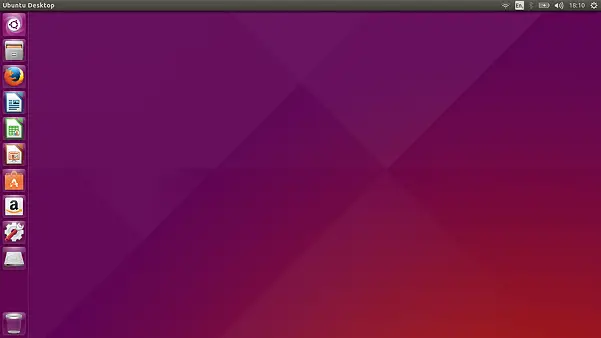
Ubuntu 15.04 comes with a new, no I mean not exactly new, it’s different, but not exactly ‘different’, ‘different’. Still, it’s not the same as its predecessor… but… but… argh!, it’s so damn confusing!.
You know, personally, I think Ubuntu is too much concerned with using the default wallpaper as an iconic figure, something that strongly represents the brand, ‘Ubuntu’. Philosophically, there is nothing wrong with that. It’s just that, it feels a bit extreme. For years they’ve come up with wallpapers that look very similar… it’s a pain just to stare at them, isn’t it?
A better approach would be, to carefully choose a gorgeous looking picture, and add a very gentle ‘Ubuntu-ness’ to it. Take ‘Apple Mac OS X’ as an example. ‘Apple’, almost always, with each new release, provides a beautiful looking default wallpaper, the kind you can keep looking at without boring yourself to death for months, and you know that it has been artistically manipulated to look that way, and that, very subtly convey the passion of the people who work at ‘Apple’. I think that’s the way it should be done.
Anyhow, other than that, except for two changes, Unity looks pretty much the same. The first obvious change is the added ‘Open Terminal’ option to the right click context menu (in both the desktop and file manager).

The second one is not that apparent. In fact, you have to use the command-line (there’s GUI, though you’ll have to install it manually) to enable it, and it’s related with the Application Menus. Ubuntu 14.10 introduced a new feature that let the user to choose between the application menu being displayed either on the ‘Top Bar’ or on the application windows, although, they were only revealed when you move your mouse over on that area, which can be a bit irritating. With Ubuntu 15.04 too, by default there is no option to make these menus to be shown always, but now you can use the below command to enable this option, at least:
gsettings set com.canonical.Unity always-show-menus true

To undo, use the same command, but use ‘false’ instead of ‘true’.
Other applications such as ‘Files’ (file manager) and ‘System Monitor’ have received few improvements, but they’re not Ubuntu contributions, because they’re Gnome applications.
Ubuntu does not include support for proprietary multimedia codecs but they can be easily installed. Firefox 37.0 does not include Adobe Flash, though you can install it easily as well (apt-get install flashplugin-installer), it is an outdated software. As a result, nowadays, I just use Google Chrome (thanks Adobe!, errr).
That’s actually pretty much it, as far as the desktop and its changes are concerned. So I’ll jump straight into the performance related data.
Boot-Up Speed…
Ubuntu used to have a utility called ‘ureadahead’ which significantly improved boot-up delays by pre-loading files that are required by the boot-up services into RAM. It was however not compatible with ‘systemd’, although until recently ‘systemd’ used to have one of its own utility that delivered the same kind of functionality, not anymore. Luckily however, as you can see from the below screenshot, ‘ureadahead’ has been made to work under ‘systemd’.

Although there are numerous differences between ‘systemd’ and ‘Upstart’ (in terms of functionality and their approach), as you can see, Ubuntu 15.04 is only 8% slower (about 3 seconds) compared to 14.10, though 25% slower (almost 6 seconds) compared to Ubuntu 14.04 LTS. Little by little though, Ubuntu is getting slower (12.04 & 13.04 used to boot within 19-20 seconds), and that is a little worrying. But to its credit, when compared with most other distributions, Ubuntu is still one of the fastest nonetheless.

Memory Usage Upon Desktop Loading…
Prior to measuring memory usage, I had added the system monitor icon to the ‘Application Launcher’. Otherwise, if I opened it through ‘Dash’, it would have added a few more Megabytes, thus reducing the accuracy of the reading.

As you can see, the memory usage after fully loading the desktop under Ubuntu 15.04 & 14.10 are basically the same (15.04 using only about 0.7% more!). The LTS version though (14.04) uses about 6.6% less memory.
Power Usage at Idle…
When measuring power, I set the screen brightness to max (and disable any setting that could interfere the brightness level: screensavers, dimming…), turns Wi-Fi ON, Bluetooth OFF, USB mouse attached and let the system just be.
As you can see from below, the power usage reading in Ubuntu 15.04 was actually higher (about 15% increase! compared to Ubuntu 14.10 and 9.9% compared to 14.04 LTS). That’s a lot in terms of power consumption for a Laptop.


What could have caused it? I do not know. But I was easily able to fix it by installing the awesome ‘TLP’ (power usage optimizer) utility. As you can see in the below screenshot, it reduced the total power consumption by around 17%!.

You can install ‘TLP’ by using the below three commands:
sudo apt-add-repository ppa:linrunner/tlp
sudo apt-get update
sudo apt-get install tlp
CPU Usage at Idle…

At idle, hardly any process interrupted the CPU and even Gnome’s system monitor only used about 1-2% of the CPU time (it used to consume about 5% in the past). I loved it!.
About Compiz FPS…
If you can remember, I used to take a note of Compiz’s (window manager) FPS (frames per second) when the desktop, Dash and HUD was at idle. Sadly though, the ‘Compiz’ plugin I used to measure it gave me a few issues, thus I was unable to measure it this time. Sorry about that.
Hardware Recognition and ACPI…
Other than my fingerprint reader, all of the other hardware were well configured by Ubuntu 15.04, with the exception that the Bluetooth adapter got turned ON upon each desktop loading instance. But I fixed it pretty easily by editing the ‘/etc/rc.local’ file (here are the instructions).
Although I don’t think this was a hardware issue & so far it has only happened once, the Laptop lost the working Wi-Fi connection all of a sudden. The easiest fix was to just restart the Network Manager daemon. It was probably ‘systemd’ related issue, but if you come across it, then try the below command:
sudo systemctl restart NetworkManager
I should also say that, in the past, ‘Compiz’ had a tendency to crash here and there, and sometimes the desktop got stuck as a result. But so far, I haven’t come across any such issue. I’ll keep using it for a couple of more days (I have to switch back to Fedora, I have this ‘thing’ with it 😉 ) and keep you updated, if anything comes up.
System Responsiveness…
This is the one test to which I cannot assign a ‘value’ or a number. I just observe and trust my gut feeling for the final judgment. The test involves me copying a file (usually about 1.5GB, but it’s not fixed) within the ‘Home’ folder and then immediately trying to play a multimedia file which is followed by trying to open a couple of programs (some I open through the ‘Application Launcher’, if it’s Ubuntu, but most of them I search and execute through the ‘Dash’ because then I can evaluate the system’s responsiveness more).
So how did it go?
Well, it was pretty much the same as with 15.04’s predecessor, 14.10. VLC (yes I installed it manually) and pretty much all the other applications (except for the Terminal emulator and ‘System Settings’ window) programs got opened only after the file copying was finished. On the positive side, mouse pointer did not lose its sensitivity though.
Then I changed the default I/O scheduler (it assigns the priority for read/write requests of applications) from ‘deadline’ to ‘CFQ’, rebooted the computer and ran the test again and found that it has completely fixed the situation!.

Not only VLC was able to play the file within a couple of seconds, but almost all the programs (LibreOffice Calc, ‘System Settings’ window, System Monitor, Terminal emulator etc) got opened before the file was finished copying (I was even able to, & had the time, to run a command in the Terminal emulator).
At the same time, I also tried to navigate into the ‘/etc/’ directory (to open something) since it contains a reasonably large number of files, and the file manager too responded very well.
For about a half of a second, multimedia playback was interrupted and at the same time mouse sensitivity too was lost, and that was the only glitch!. Responsiveness was excellent (if you come across the same issue, then try changing the I/O scheduler).
Shutdown Delay…

Ubuntu 15.04 was the fastest while shutting down (48% faster compared to 14.10 and 32.4% faster compared to 14.04 LTS). I’m not surprised at these readings because most of the distributions that are based on ‘systemd’, as I have observed, have a tendency to shutdown fast.
Final Words…
Despite having gone through a major change, Ubuntu 15.04 was very stable while I reviewed it. I don’t know about you, but for me the responsiveness & power usage issues are a major concern. But luckily, they can be fixed to a near perfection, and once you do that, Ubuntu really becomes Ubuntu!, the easy to use, easy to manage, beginner friendly, beautiful looking operating system that we all love (well, maybe not by everyone 😉 ).
You can download it from here, but make sure to read the release notes first. Good luck & thank you for reading.

43 Comments
Thanks for nice review. No need to use Google Chrome to play flash video. You can use the new Firefox for Windows – see http://community.linuxmint.com/tutorial/view/2028
You’re welcome Pedros. And thank you for the link 🙂 .
is 14.04 is better or next upgrade version is better
i want to know please reply as much as possible
because i want to do it
Assuming that you’re talking about Ubuntu’s LTS versions, yes I’d say the 16.04 LTS is a new and a pretty solid release:
https://hecticgeek.com/2016/04/ubuntu-16-04-lts-review/
P.S: I mentioned in the review that was an issue in the Software Center of Ubuntu 16.04 LTS where users weren’t able to install third-party apps, but now it’s also fixed.